<!DOCTYPE html>
	<html lang="vi" xmlns="http://www.w3.org/1999/xhtml" prefix="og: http://ogp.me/ns#">
	<head>
<title>Hướng dẫn cách xoay chữ trong Google Docs</title>
<meta name="description" content="Hướng dẫn cách xoay chữ trong Google Docs - Savefile - Tin Tức -...">
<meta name="author" content="Trung tâm Công tác xã hội - giáo dục nghề nghiệp cho người khuyết tật Hà Tĩnh">
<meta name="copyright" content="Trung tâm Công tác xã hội - giáo dục nghề nghiệp cho người khuyết tật Hà Tĩnh [admin@nukeviet.vn]">
<meta name="generator" content="NukeViet v4.4">
<meta http-equiv="Content-Type" content="text/html; charset=utf-8">
<meta property="og:title" content="Hướng dẫn cách xoay chữ trong Google Docs">
<meta property="og:type" content="website">
<meta property="og:description" content="Savefile - Tin Tức - https&#x3A;&#x002F;&#x002F;trungtamcongtacxahoi.hatinh.vn&#x002F;savefile&#x002F;kinh-te-xa-hoi&#x002F;huong-dan-cach-xoay-chu-trong-google-docs-12480.html">
<meta property="og:site_name" content="Trung tâm Công tác xã hội - giáo dục nghề nghiệp cho người khuyết tật Hà Tĩnh">
<meta property="og:url" content="https://trungtamcongtacxahoi.hatinh.vn/kinh-te-xa-hoi/huong-dan-cach-xoay-chu-trong-google-docs-12480.html">
<link rel="shortcut icon" href="https://trungtamcongtacxahoi.hatinh.vn/favicon.ico">
<link rel="canonical" href="https://trungtamcongtacxahoi.hatinh.vn/kinh-te-xa-hoi/huong-dan-cach-xoay-chu-trong-google-docs-12480.html">
<link rel="alternate" href="https://trungtamcongtacxahoi.hatinh.vn/rss/" title="Tin Tức" type="application/rss+xml">
<link rel="alternate" href="https://trungtamcongtacxahoi.hatinh.vn/rss/ctxh/" title="Tin Tức - Công tác xã hội" type="application/rss+xml">
<link rel="alternate" href="https://trungtamcongtacxahoi.hatinh.vn/rss/quytreem/" title="Tin Tức - Quỹ bảo trợ trẻ em" type="application/rss+xml">
<link rel="alternate" href="https://trungtamcongtacxahoi.hatinh.vn/rss/daynghe/" title="Tin Tức - Giáo dục nghề nghiệp" type="application/rss+xml">
<link rel="alternate" href="https://trungtamcongtacxahoi.hatinh.vn/rss/kinh-te-xa-hoi/" title="Tin Tức - Kinh tế - xã hội" type="application/rss+xml">
<link rel="preload" as="script" href="https://trungtamcongtacxahoi.hatinh.vn/assets/js/jquery/jquery.min.js">
<link rel="preload" as="script" href="https://trungtamcongtacxahoi.hatinh.vn/assets/js/language/vi.js">
<link rel="preload" as="script" href="https://trungtamcongtacxahoi.hatinh.vn/assets/js/global.js">
<link rel="preload" as="script" href="https://trungtamcongtacxahoi.hatinh.vn/themes/default/js/news.js">
<link rel="preload" as="script" href="https://trungtamcongtacxahoi.hatinh.vn/assets/js/jquery/jquery.cookie.js">
<link rel="preload" as="script" href="https://trungtamcongtacxahoi.hatinh.vn/themes/egov/js/main.js">
<link rel="preload" as="script" href="https://trungtamcongtacxahoi.hatinh.vn/themes/egov/js/custom.js">
<link rel="preload" as="script" href="https://trungtamcongtacxahoi.hatinh.vn/themes/egov/js/bootstrap.min.js">
<link rel="StyleSheet" href="https://trungtamcongtacxahoi.hatinh.vn/assets/css/font-awesome.min.css">
<link rel="StyleSheet" href="https://trungtamcongtacxahoi.hatinh.vn/themes/egov/css/bootstrap.non-responsive.css">
<link rel="StyleSheet" href="https://trungtamcongtacxahoi.hatinh.vn/themes/egov/css/style.css">
<link rel="StyleSheet" href="https://trungtamcongtacxahoi.hatinh.vn/themes/egov/css/style.non-responsive.css">
<link rel="StyleSheet" href="https://trungtamcongtacxahoi.hatinh.vn/themes/egov/css/custom.css">
<link rel="StyleSheet" href="https://trungtamcongtacxahoi.hatinh.vn/themes/egov/css/style-blue.css">
<link rel="StyleSheet" href="https://trungtamcongtacxahoi.hatinh.vn/themes/egov/css/news.css">
<style>
	body{background: #fff;}
</style>
	</head>
	<body>
<div id="print">
	<div id="hd_print">
		<h2 class="pull-left">Trung tâm Công tác xã hội - giáo dục nghề nghiệp cho người khuyết tật Hà Tĩnh</h2>
		<p class="pull-right"><a title="Trung tâm Công tác xã hội - giáo dục nghề nghiệp cho người khuyết tật Hà Tĩnh" href="https://trungtamcongtacxahoi.hatinh.vn/">https://trungtamcongtacxahoi.hatinh.vn</a></p>
	</div>
	<div class="clear"></div>
	<hr />
	<div id="content">
		<h1>Hướng dẫn cách xoay chữ trong Google Docs</h1>
		<ul class="list-inline">
			<li>Thứ bảy - 29/11/2025 22:19</li>
			<li class="hidden-print txtrequired"><em class="fa fa-print">&nbsp;</em><a title="In ra" href="javascript:;" onclick="window.print()">In ra</a></li>
			<li class="hidden-print txtrequired"><em class="fa fa-power-off">&nbsp;</em><a title="Đóng cửa sổ này" href="javascript:;" onclick="window.close()">Đóng cửa sổ này</a></li>
		</ul>
		<div class="clear"></div>
		<div id="hometext">
		</div>
				<div class="imghome">
			<img alt="Hướng dẫn cách xoay chữ trong Google Docs" src="https://baoquocte.vn/stores/news_dataimages/2025/112025/27/09/huong-dan-cach-xoay-chu-trong-google-docs-tien-loi-hieu-qua-220251127093533.webp?rt=202511292235" width="600" class="img-thumbnail" />
		</div>
		<div class="clear"></div>
		<div id="bodytext" class="clearfix">
			<h2 style="text-align: justify;">(Baohatinh.vn) - Xoay chữ trong Google Docs giúp tài liệu sinh động hơn. Chỉ cần vài thao tác đơn giản, bạn đã có thể tạo điểm nhấn rõ rệt.</h2>

<div style="text-align: justify;">chia sẻ<a href="https://baohatinh.vn/huong-dan-cach-xoay-chu-trong-google-docs-post300319.html?gidzl=0S1FSxASPauArqPmjuPZJWxKItAhWciOHDDCAAxJRXGTX1bveDDgHqZJI7hwqsv5HeLBA32BPH49kv9eI0#comment300319" title="Bình luận">0</a></div>

<figure>
<div style="text-align: justify;"><img alt="Hướng dẫn cách xoay chữ trong Google Docs tiện lợi, hiệu quả." data-large-src="https://baoquocte.vn/stores/news_dataimages/2025/112025/27/09/huong-dan-cach-xoay-chu-trong-google-docs-tien-loi-hieu-qua-220251127093533.webp?rt=202511292235" data-src="https://baoquocte.vn/stores/news_dataimages/2025/112025/27/09/huong-dan-cach-xoay-chu-trong-google-docs-tien-loi-hieu-qua-220251127093533.webp?rt=202511292235" src="https://baoquocte.vn/stores/news_dataimages/2025/112025/27/09/huong-dan-cach-xoay-chu-trong-google-docs-tien-loi-hieu-qua-220251127093533.webp?rt=202511292235" title="Hướng dẫn cách xoay chữ trong Google Docs tiện lợi, hiệu quả." /></div>

<figcaption>
<div style="text-align: justify;">Hướng dẫn cách xoay chữ trong Google Docs tiện lợi, hiệu quả.</div>
</figcaption>
</figure>

<p style="text-align: justify;">Xoay chữ trong Google Docs là thủ thuật hữu ích giúp tài liệu trở nên sinh động và bắt mắt hơn. Chỉ với vài thao tác đơn giản, bạn đã có thể tạo ra những điểm nhấn ấn tượng. Bài viết này sẽ hướng dẫn bạn các phương pháp thực hiện nhanh chóng và dễ dàng, giúp nâng tầm thiết kế cho mọi văn bản.</p>

<p style="text-align: justify;"><strong>Cách xoay chữ trong Google Docs bằng Textbox đơn giản</strong></p>

<p style="text-align: justify;">Xoay chữ bằng Textbox trong Google Docs là mẹo đơn giản giúp bạn tạo điểm nhấn cho tài liệu. Chỉ cần làm theo các bước sau, bạn sẽ dễ dàng chỉnh hướng chữ theo ý muốn.</p>

<p style="text-align: justify;"><strong>Bước 1: Mở tài liệu Google Docs</strong></p>

<p style="text-align: justify;">Truy cập Google Docs trên trình duyệt và đăng nhập tài khoản của bạn. Sau đó chọn file mà bạn muốn chỉnh sửa.</p>

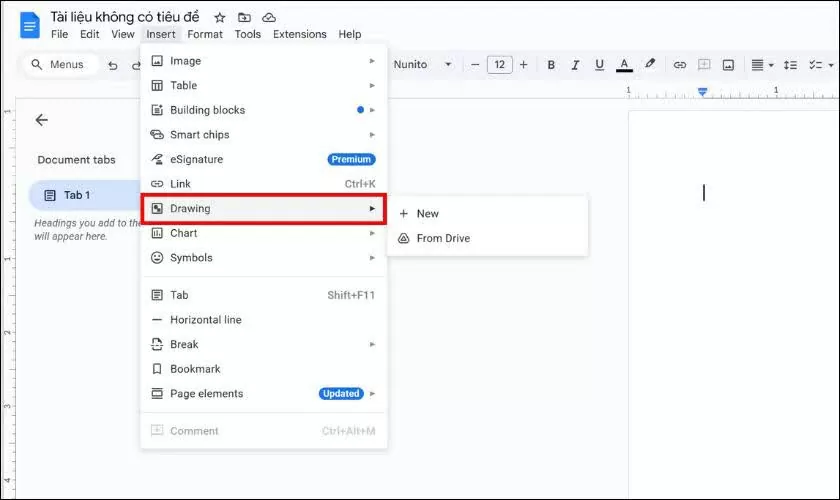
<p style="text-align: justify;"><strong>Bước 2: Chọn Insert → Drawing → New</strong></p>

<p style="text-align: justify;">Trên thanh menu của tài liệu, nhấp vào mục&nbsp;<em>Insert</em>. Tiếp tục chọn&nbsp;<em>Drawing</em>, rồi bấm&nbsp;<em>New</em>&nbsp;để mở giao diện vẽ.</p>

<figure>
<div style="text-align: justify;"><img alt="Chọn Insert → Drawing → New." data-large-src="https://baoquocte.vn/stores/news_dataimages/2025/112025/27/09/huong-dan-cach-xoay-chu-trong-google-docs-tien-loi-hieu-qua-120251127093537.webp?rt=202511292235" data-src="https://baoquocte.vn/stores/news_dataimages/2025/112025/27/09/huong-dan-cach-xoay-chu-trong-google-docs-tien-loi-hieu-qua-120251127093537.webp?rt=202511292235" src="https://baoquocte.vn/stores/news_dataimages/2025/112025/27/09/huong-dan-cach-xoay-chu-trong-google-docs-tien-loi-hieu-qua-120251127093537.webp?rt=202511292235" title="Chọn Insert → Drawing → New." /></div>

<figcaption>
<div style="text-align: justify;">Chọn Insert → Drawing → New.</div>
</figcaption>
</figure>

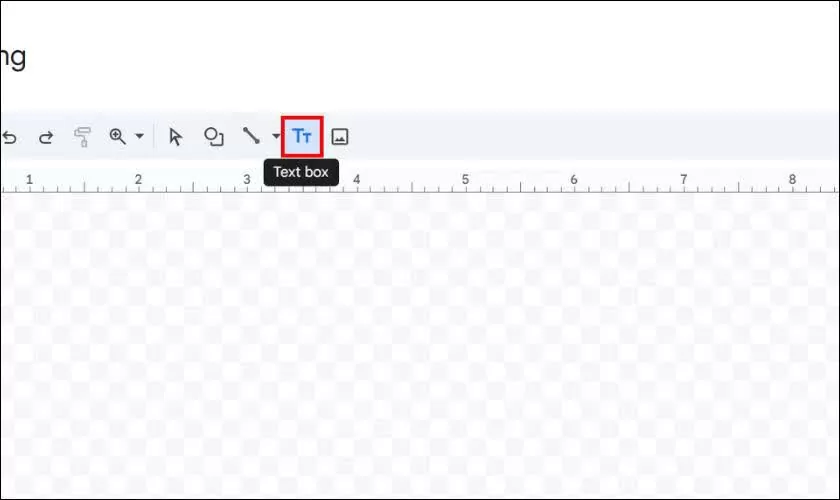
<p style="text-align: justify;"><strong>Bước 3: Thêm Text Box vào Drawing</strong></p>

<p style="text-align: justify;">Trong cửa sổ Drawing, chọn biểu tượng&nbsp;<em>Text Box</em>. Dùng chuột kéo để tạo một khung văn bản mới trên vùng trống.</p>

<figure>
<div style="text-align: justify;"><img alt="Thêm Text Box vào Drawing." data-large-src="https://baoquocte.vn/stores/news_dataimages/2025/112025/27/09/huong-dan-cach-xoay-chu-trong-google-docs-tien-loi-hieu-qua-620251127093536.webp?rt=202511292235" data-src="https://baoquocte.vn/stores/news_dataimages/2025/112025/27/09/huong-dan-cach-xoay-chu-trong-google-docs-tien-loi-hieu-qua-620251127093536.webp?rt=202511292235" src="https://baoquocte.vn/stores/news_dataimages/2025/112025/27/09/huong-dan-cach-xoay-chu-trong-google-docs-tien-loi-hieu-qua-620251127093536.webp?rt=202511292235" title="Thêm Text Box vào Drawing." /></div>

<figcaption>
<div style="text-align: justify;">Thêm Text Box vào Drawing.</div>
</figcaption>
</figure>

<p style="text-align: justify;"><strong>Bước 4: Nhập nội dung cần xoay</strong></p>

<p style="text-align: justify;">Nhấp vào khung văn bản và gõ phần chữ bạn muốn xoay. Bạn có thể nhập bất kỳ nội dung nào theo nhu cầu.</p>

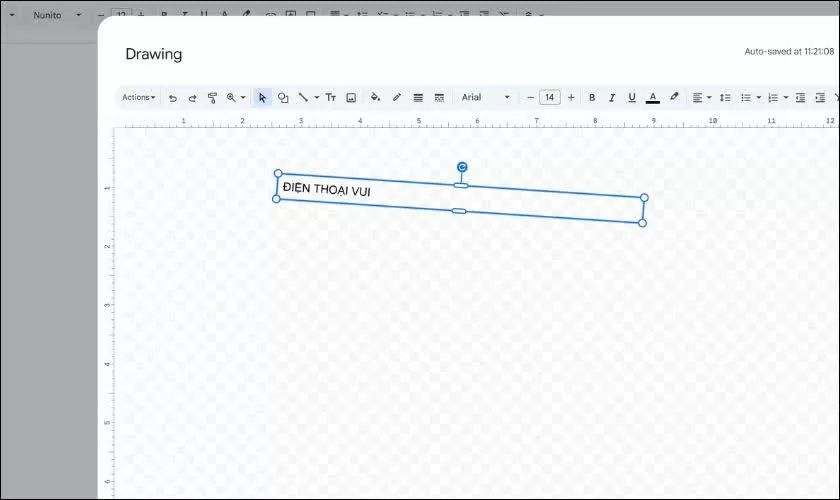
<p style="text-align: justify;"><strong>Bước 5: Xoay Text Box bằng nút tròn màu xanh</strong></p>

<p style="text-align: justify;">Trên khung văn bản sẽ xuất hiện một chấm tròn màu xanh lam. Hãy kéo chấm này để xoay chữ theo góc độ bạn mong muốn.</p>

<figure>
<div style="text-align: justify;"><img alt="Xoay Text Box bằng nút tròn màu xanh." data-large-src="https://baoquocte.vn/stores/news_dataimages/2025/112025/27/09/huong-dan-cach-xoay-chu-trong-google-docs-tien-loi-hieu-qua-520251127093535.webp?rt=202511292235" data-src="https://baoquocte.vn/stores/news_dataimages/2025/112025/27/09/huong-dan-cach-xoay-chu-trong-google-docs-tien-loi-hieu-qua-520251127093535.webp?rt=202511292235" src="https://baoquocte.vn/stores/news_dataimages/2025/112025/27/09/huong-dan-cach-xoay-chu-trong-google-docs-tien-loi-hieu-qua-520251127093535.webp?rt=202511292235" title="Xoay Text Box bằng nút tròn màu xanh." /></div>

<figcaption>
<div style="text-align: justify;">Xoay Text Box bằng nút tròn màu xanh.</div>
</figcaption>
</figure>

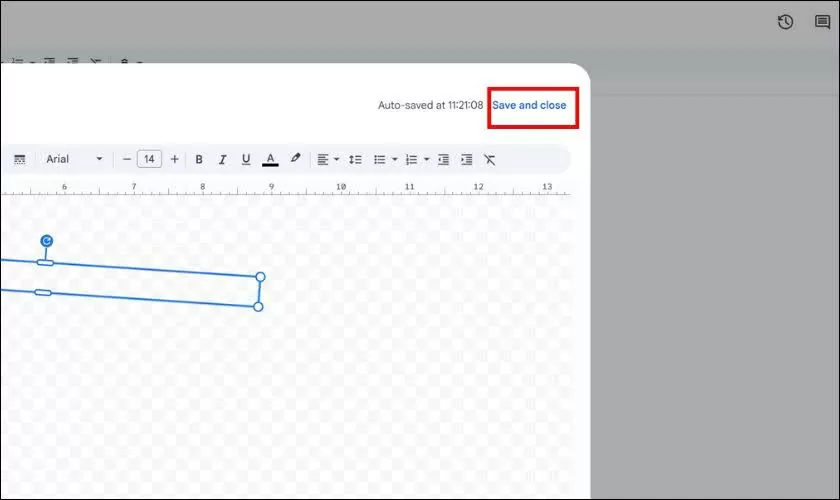
<p style="text-align: justify;"><strong>Bước 6: Lưu và chèn vào tài liệu</strong></p>

<p style="text-align: justify;">Khi đã xoay xong, nhấn&nbsp;<em>Save and Close</em>. Khung chữ xoay sẽ được chèn thẳng vào trang Google Docs của bạn.</p>

<figure>
<div style="text-align: justify;"><img alt="Lưu và chèn vào tài liệu." data-large-src="https://baoquocte.vn/stores/news_dataimages/2025/112025/27/09/huong-dan-cach-xoay-chu-trong-google-docs-tien-loi-hieu-qua-420251127093535.webp?rt=202511292235" data-src="https://baoquocte.vn/stores/news_dataimages/2025/112025/27/09/huong-dan-cach-xoay-chu-trong-google-docs-tien-loi-hieu-qua-420251127093535.webp?rt=202511292235" src="https://baoquocte.vn/stores/news_dataimages/2025/112025/27/09/huong-dan-cach-xoay-chu-trong-google-docs-tien-loi-hieu-qua-420251127093535.webp?rt=202511292235" title="Lưu và chèn vào tài liệu." /></div>

<figcaption>
<div style="text-align: justify;">Lưu và chèn vào tài liệu.</div>
</figcaption>
</figure>

<p style="text-align: justify;"><strong>Cách xoay chữ trong Google Docs bằng WordArt nhanh chóng</strong></p>

<p style="text-align: justify;">WordArt là lựa chọn tuyệt vời nếu bạn muốn tạo phong cách chữ nổi bật, nghệ thuật và bắt mắt trong tài liệu. Công cụ này rất phù hợp để thiết kế tiêu đề, slogan hoặc bất kỳ phần chữ nào cần tạo ấn tượng. Ngoài khả năng xoay chữ, WordArt còn đi kèm nhiều hiệu ứng đẹp mắt và tùy chỉnh đa dạng. Dưới đây là cách thực hiện:</p>

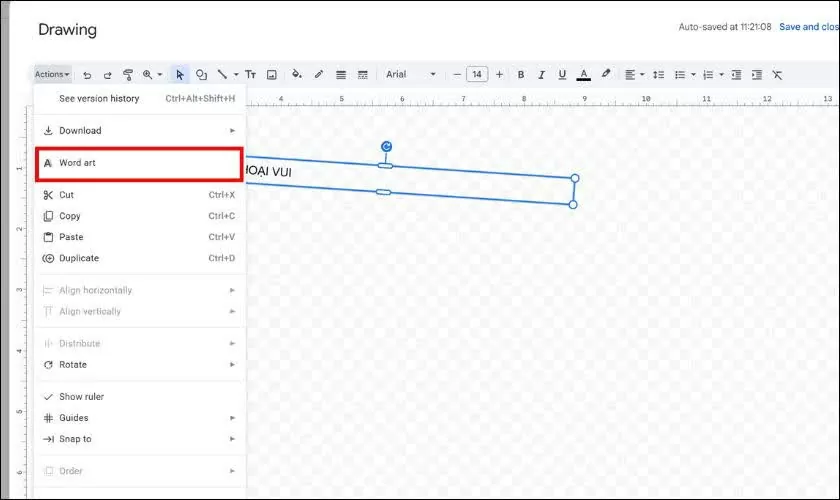
<p style="text-align: justify;"><strong>Bước 1:</strong>&nbsp;Trong cửa sổ&nbsp;<em>Drawing</em>, hãy nhấp vào biểu tượng&nbsp;<em>WordArt</em>&nbsp;hình chữ A trên thanh công cụ.</p>

<figure>
<div style="text-align: justify;"><img alt="Trong cửa sổ Drawing, hãy nhấp vào biểu tượng WordArt hình chữ A trên thanh công cụ." data-large-src="https://baoquocte.vn/stores/news_dataimages/2025/112025/27/09/huong-dan-cach-xoay-chu-trong-google-docs-tien-loi-hieu-qua-320251127093534.webp?rt=202511292235" data-src="https://baoquocte.vn/stores/news_dataimages/2025/112025/27/09/huong-dan-cach-xoay-chu-trong-google-docs-tien-loi-hieu-qua-320251127093534.webp?rt=202511292235" src="https://baoquocte.vn/stores/news_dataimages/2025/112025/27/09/huong-dan-cach-xoay-chu-trong-google-docs-tien-loi-hieu-qua-320251127093534.webp?rt=202511292235" title="Trong cửa sổ Drawing, hãy nhấp vào biểu tượng WordArt hình chữ A trên thanh công cụ." /></div>

<figcaption>
<div style="text-align: justify;">Trong cửa sổ Drawing, hãy nhấp vào biểu tượng WordArt hình chữ A trên thanh công cụ.</div>
</figcaption>
</figure>

<p style="text-align: justify;"><strong>Bước 2:</strong>&nbsp;Khi hộp nhập nội dung xuất hiện, hãy điền đoạn chữ bạn cần rồi nhấn&nbsp;<em>Enter</em>&nbsp;để tạo WordArt.</p>

<p style="text-align: justify;"><strong>Bước 3:</strong>&nbsp;Khối WordArt sẽ hiện ra với kiểu mặc định; bạn có thể chỉnh lại font, màu và kích thước theo ý thích. Cũng giống như Text Box, chỉ cần kéo chấm tròn màu xanh ở phía trên để xoay chữ.</p>

<p style="text-align: justify;">Ngoài ra, bạn có thể thêm hiệu ứng viền, bóng hoặc màu chuyển sắc để làm chữ nổi bật hơn.</p>

<p style="text-align: justify;"><strong>Bước 4:</strong>&nbsp;Cuối cùng, chọn&nbsp;<em>Save and Close</em>&nbsp;để đưa WordArt đã xoay vào tài liệu.</p>

<p style="text-align: justify;">Nhìn chung, việc xoay chữ trong Google Docs không hề phức tạp và bạn có thể thực hiện chỉ trong vài phút với Text Box hoặc WordArt. Những công cụ này giúp tài liệu trở nên sinh động, rõ ràng và chuyên nghiệp hơn. Chỉ cần làm quen một chút, bạn sẽ dễ dàng sáng tạo theo ý muốn. Hãy áp dụng ngay để nâng cấp cách trình bày tài liệu của mình!</p>
		</div>
				<div id="author">
						<p>
				<strong>Nguồn tin:</strong>
				Theo Báo Hà Tĩnh:
			</p>
		</div>
	</div>
	<div id="footer" class="clearfix">
		<div id="url">
			<strong>URL của bản tin này: </strong><a href="https://trungtamcongtacxahoi.hatinh.vn/kinh-te-xa-hoi/huong-dan-cach-xoay-chu-trong-google-docs-12480.html" title="Hướng dẫn cách xoay chữ trong Google Docs">https://trungtamcongtacxahoi.hatinh.vn/kinh-te-xa-hoi/huong-dan-cach-xoay-chu-trong-google-docs-12480.html</a>

		</div>
		<div class="clear"></div>
		<div class="copyright">
			&copy; Trung tâm Công tác xã hội - giáo dục nghề nghiệp cho người khuyết tật Hà Tĩnh
		</div>
		<div id="contact">
			<a href="mailto:admin@nukeviet.vn">admin@nukeviet.vn</a>
		</div>
	</div>
</div>
        <div id="timeoutsess" class="chromeframe">
            Bạn đã không sử dụng Site, <a onclick="timeoutsesscancel();" href="https://trungtamcongtacxahoi.hatinh.vn/#">Bấm vào đây để duy trì trạng thái đăng nhập</a>. Thời gian chờ: <span id="secField"> 60 </span> giây
        </div>
        <div id="openidResult" class="nv-alert" style="display:none"></div>
        <div id="openidBt" data-result="" data-redirect=""></div>
<script src="https://trungtamcongtacxahoi.hatinh.vn/assets/js/jquery/jquery.min.js"></script>
<script>var nv_base_siteurl="/",nv_lang_data="vi",nv_lang_interface="vi",nv_name_variable="nv",nv_fc_variable="op",nv_lang_variable="language",nv_module_name="news",nv_func_name="savefile",nv_is_user=0, nv_my_ofs=-4,nv_my_abbr="EDT",nv_cookie_prefix="nv4",nv_check_pass_mstime=1738000,nv_area_admin=0,nv_safemode=0,theme_responsive=0,nv_is_recaptcha=0;</script>
<script src="https://trungtamcongtacxahoi.hatinh.vn/assets/js/language/vi.js"></script>
<script src="https://trungtamcongtacxahoi.hatinh.vn/assets/js/global.js"></script>
<script src="https://trungtamcongtacxahoi.hatinh.vn/themes/default/js/news.js"></script>
<script src="https://trungtamcongtacxahoi.hatinh.vn/assets/js/jquery/jquery.cookie.js"></script>
<script src="https://trungtamcongtacxahoi.hatinh.vn/themes/egov/js/main.js"></script>
<script src="https://trungtamcongtacxahoi.hatinh.vn/themes/egov/js/custom.js"></script>
<script src="https://trungtamcongtacxahoi.hatinh.vn/themes/egov/js/bootstrap.min.js"></script>
</body>
</html>